Best IPTV for Firestick With No Buffering in 2026
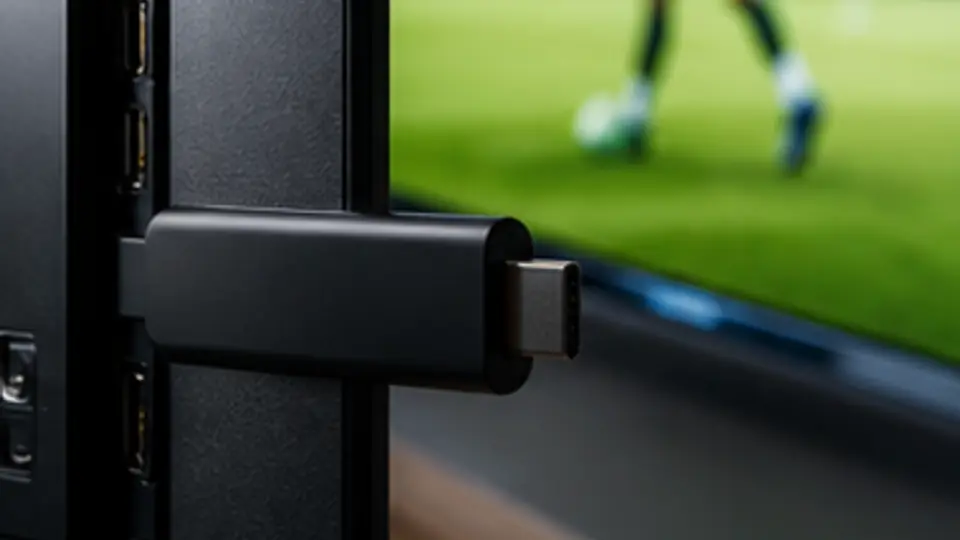
The Amazon Firestick is, by a wide margin, the most popular IPTV device in the world. It's cheap, it's tiny, it runs every major IPTV app, and it just works — when it's set up correctly. The flip side is that bad Wi-Fi, the wrong player settings, or a sluggish cheap router will cause buffering that makes IPTV unwatchable. This guide fixes that.
Which Firestick to buy in 2026
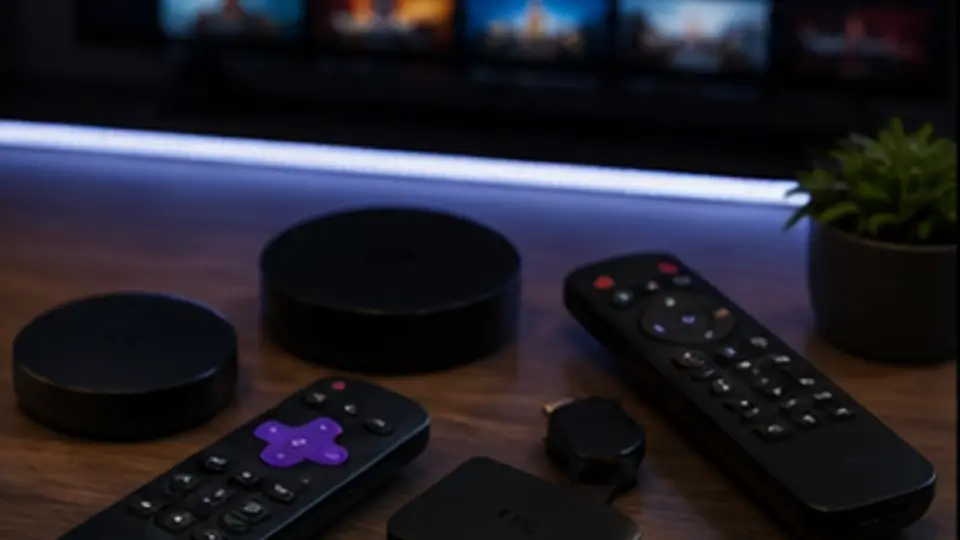
If you're starting from scratch, the Firestick 4K Max is the right buy. It has the best Wi-Fi chip Amazon makes (Wi-Fi 6E), enough CPU for smooth 4K HDR, and is usually under $60. The basic HD Firestick is fine for HD-only streams; the 4K is fine for 4K but the 4K Max is the safer 4K choice.
Step 1: install IPTV Smarters Pro
Sideload Smarters Pro via the Downloader app — full step-by-step on our IPTV for Firestick page. Once installed, log in with the Xtream Codes credentials from your TrexTV subscription (or your free 24-hour test).
Step 2: pick the right Wi-Fi band
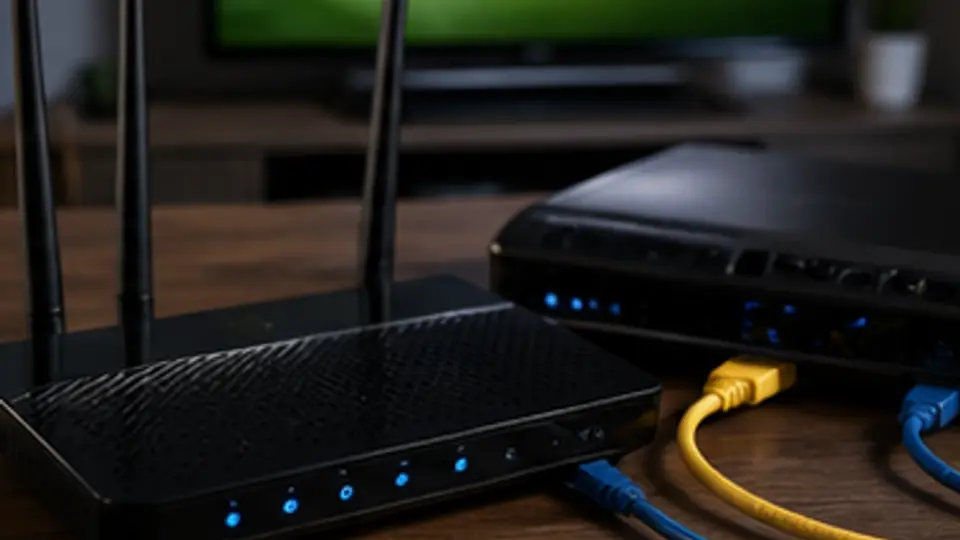
Connect your Firestick to your 5 GHz Wi-Fi network, not the 2.4 GHz one. 5 GHz is much faster and less congested. On a Firestick 4K Max with Wi-Fi 6E support, use a Wi-Fi 6 router if you have one for the smoothest possible 4K experience.
Step 3: set buffer correctly
This is the single most impactful setting. In IPTV Smarters Pro, go to Settings → Stream Format → set buffer to 2,000–4,000 ms. Below 1,000 ms you'll see stutter on Wi-Fi; above 5,000 ms, channel switching feels slow.
Step 4: enable hardware acceleration
In Smarters: Settings → Player Settings → set Decoder to "Hardware". This offloads decoding to the Firestick GPU and dramatically reduces buffering on 4K streams.
Step 5: change your DNS
Cheap routers come with bad DNS. On Firestick, install the "Wolf Launcher" or "AlternativeDNS" app, or just set DNS on your router itself to 1.1.1.1 (Cloudflare) or 8.8.8.8 (Google). This fixes the slow-channel-load problem most users blame on IPTV.
Step 6: clear cache regularly
Firestick storage is small. Every few weeks: Settings → Applications → Manage Installed Applications → IPTV Smarters Pro → Clear Cache. Channels and EPG reload faster.
Step 7: test on a wired connection
If you still see buffering, eliminate Wi-Fi as the variable. Buy a $10 Amazon Ethernet adapter for Firestick, plug it in, and test. If the wired connection is smooth and Wi-Fi isn't, your Wi-Fi (not the IPTV) is the bottleneck.
Step 8: check upstream conditions
Run fast.com on the Firestick browser (or your phone on the same Wi-Fi). For HD IPTV you want at least 15 Mbps. For 4K IPTV you want 25+ Mbps. If you're below that, the IPTV isn't the issue — your broadband is.
Step 9: prefer TiviMate for power-user playback
If you want to spend $5–10/year on TiviMate Premium, it has slightly better playback engine and EPG than Smarters Pro on Firestick. But Smarters is free and works for 99% of users.
Step 10: keep the Firestick alive
- Don't fully unplug the Firestick after every use — let it sleep.
- Keep the firmware updated.
- Don't install 15 launchers, ad-blockers, and 'Firestick optimisers' from sketchy YouTube tutorials — they create more problems than they solve.
If buffering still happens
Open our full IPTV buffering fix guide — it covers router placement, DNS, codec, and the 5-minute diagnostic order. 99% of Firestick IPTV problems are fixed by Wi-Fi or buffer settings.
The 30-second checklist
- Firestick 4K or 4K Max on 5 GHz Wi-Fi.
- IPTV Smarters Pro with Xtream Codes login.
- Buffer set to 2,000–4,000 ms.
- Hardware decoder enabled.
- DNS set to 1.1.1.1.
- Internet speed verified at fast.com (15+ Mbps HD, 25+ Mbps 4K).
Hit those six points and your Firestick will stream TrexTV without buffering. Try the free 24-hour test with these settings before paying.