IPTV Buffering Fix Guide: Best Settings for Smooth Streaming
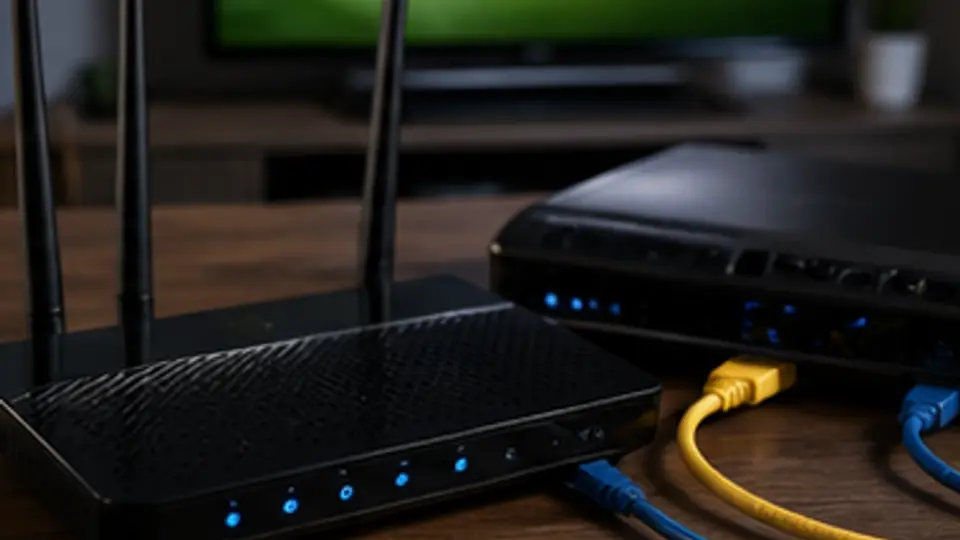
IPTV buffering is the most-complained-about problem in this entire industry. The good news: in 95% of cases, it's not the IPTV service — it's a fixable setting on your Wi-Fi, router, DNS, or player. This guide walks through the fixes in the exact order to try them. Most users solve buffering in under 10 minutes.
Step 1: confirm it's actually buffering
"Buffering" looks like the spinning circle while a stream loads. It's different from:
- Pixelation — usually a hardware decoding issue, not bandwidth.
- Audio out of sync — usually a player setting.
- Long channel-load times — usually DNS or buffer size.
If you see the spinner mid-stream, that's buffering and this guide is for you.
Step 2: speed-test your internet
On the same device or one on the same Wi-Fi, open fast.com. You need:
- HD streams: 15 Mbps minimum, 20 Mbps comfortable.
- 4K streams: 25 Mbps minimum, 40+ Mbps comfortable.
If you're below that, the IPTV isn't your problem. Upgrade your broadband or move closer to the router.
Step 3: switch to 5 GHz Wi-Fi
If your router broadcasts both 2.4 GHz and 5 GHz networks (most do), connect your Firestick or Smart TV to the 5 GHz network. The 2.4 GHz band is congested by every microwave, baby monitor, and neighbour's router. 5 GHz is dramatically faster and cleaner.
Step 4: raise the player buffer
In IPTV Smarters Pro: Settings → Stream Format → Buffer → set to 4,000 ms. (Default is often 1,000 ms, which is too low for Wi-Fi.)
In TiviMate: Settings → Playback → Buffer for live channels → 4 seconds.
In Kodi PVR: Settings → Player → Buffer mode → 1, cache size 50 MB.
Step 5: change DNS
Cheap router DNS adds latency to every channel switch. Set your router's DNS (or your device's, if your router won't change) to:
- 1.1.1.1 (Cloudflare) — fastest in most regions.
- 8.8.8.8 (Google) — universally reliable.
- 9.9.9.9 (Quad9) — security-focused alternative.
Step 6: enable hardware decoding
In Smarters Pro / TiviMate: Settings → Player Settings → Decoder → Hardware. This offloads decoding from the CPU to the GPU on your Firestick / Android box, dramatically reducing buffer events on 4K streams.
Step 7: try a wired connection
If Wi-Fi is the bottleneck, wired Ethernet eliminates the question. For Firestick, buy a $10 Amazon Ethernet adapter. For Smart TVs, plug in directly. For Apple TV, plug in directly. If wired is smooth and Wi-Fi isn't, you've isolated the problem.
Step 8: reduce other Wi-Fi load
If your household has 8 devices on Wi-Fi, large downloads, video calls, or someone gaming on a console, IPTV competes for bandwidth. Pause other heavy traffic during your stream.
Step 9: restart the router
Routers leak memory and get sluggish over weeks of uptime. Unplug for 60 seconds, plug back in. Often the cheapest fix.
Step 10: try a different IPTV app
Sometimes a player update has issues. If Smarters is buffering and TiviMate isn't (or vice versa), it's the app, not the stream. Try the other player as a diagnostic.
Step 11: time-of-day testing
Try the same channel at 3 AM. If it streams smoothly then but buffers at 9 PM, your ISP is the bottleneck — they're throttling streaming during peak hours. Upgrade your broadband package or escalate with the ISP.
Step 12: try a VPN as a diagnostic
Not a recommendation for daily use — but as a diagnostic, if a VPN fixes buffering, your ISP is throttling streaming traffic. That's a legal grey area in some countries; the ISP will deny it but the symptom is real.
Step 13: try a different region / origin
If you're persistently buffering on one specific channel, contact us. We may be able to switch you to a different origin server for that channel. Get in touch.
Quick-fix summary
- Speed-test broadband.
- Move to 5 GHz Wi-Fi.
- Raise player buffer to 4,000 ms.
- Set DNS to 1.1.1.1.
- Enable hardware decoder.
- Try wired Ethernet.
- Restart router.
- Reduce other Wi-Fi traffic.
- Time-of-day comparison.
Run these in order. 95% of buffering is solved before step 6.
If it's still buffering
Email us at the contact page with your device, ISP, broadband speed, and an example channel. We diagnose buffering for users every week and we can usually pinpoint the root cause in one message.
Choose a setup designed for stability
- Firestick 4K Max on 5 GHz Wi-Fi 6 — best budget option.
- Apple TV 4K on Ethernet — best premium option.
- NVIDIA Shield on Ethernet — best power-user option.